Add and Manage Products in OxPOS
Video tutorial: add products in OxPOS with SKU, price, category, brand and shelf, create size and colour variants, link barcodes and bulk import.
Your product list is the heart of your cashier system. If it is built properly, sales are fast, stock is accurate and reports make sense. This ten-minute lesson shows how to build that list in OxPOS, whether you have fifty products or several thousand.
What this video covers
- Adding a new product with its full details: name, SKU, price, category, brand and shelf
- The difference between a simple product and a product with variants (sizes and colours)
- Adding a barcode and linking it to the product
- Bulk import to upload hundreds of products at once
- Linking products to categories, brands and shelves
- Product status (Active or Warning)
Step by step
- Open Products and choose Add Product. Enter the name, SKU and selling price.
- Organise it. Choose the category, brand and shelf. This makes searching, reporting and stock counts much easier.
- Pick the product type. Use a simple product for single items. Use variants for items sold in sizes or colours, so each variant has its own stock.
- Add the barcode. Scan the existing barcode or enter it manually, so the cashier can scan it at checkout.
- Save and check the status. Active products are ready to sell. A Warning status tells you something needs attention.
- Use bulk import for large catalogues. Prepare your list in a spreadsheet and import it in one step.
Tips for a clean catalogue
- Agree on naming first. Decide how names, brands and categories are written before importing, so reports stay tidy.
- Use variants for fashion. A shirt in five sizes is one product with five variants, not five separate products.
- Set shelves if you have a warehouse area. Staff find stock faster, and counts are quicker.
- Weighed products such as fruit or nuts can be set up to work with a weighing scale.
For stock planning ideas, read streamlining inventory with a POS in the UAE.
Next lesson
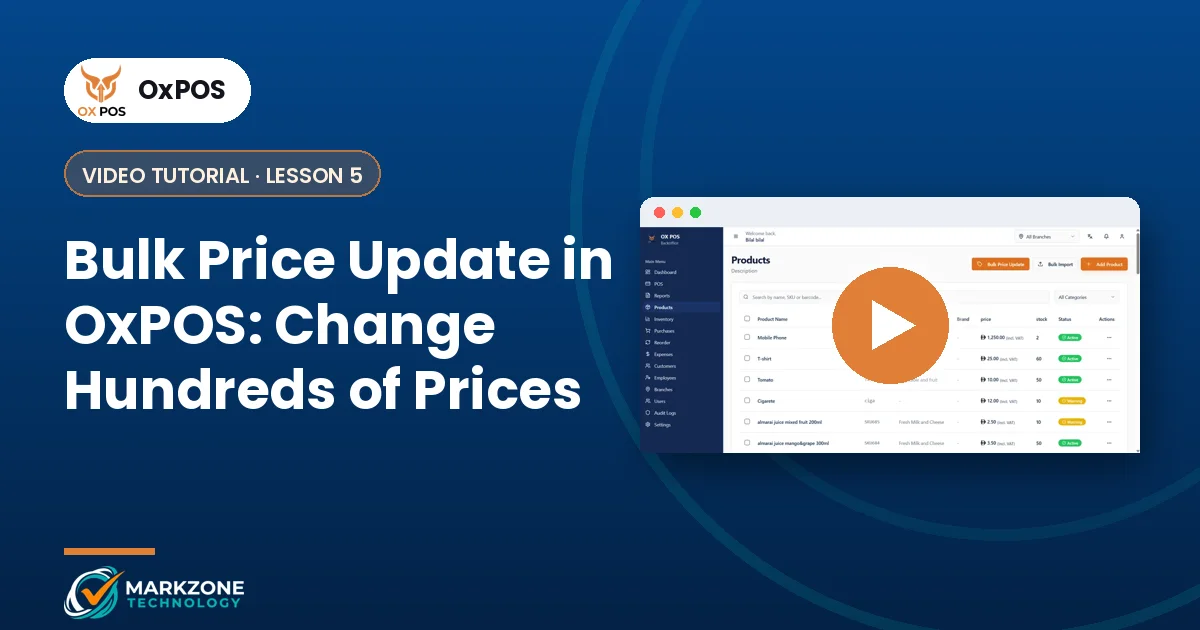
Changing many prices at once? Learn bulk price updates in OxPOS. All lessons are on the video tutorials page.
Have your product list in Excel? Send it to us on WhatsApp and our team will help you import it.