TexPOS Sales Screen: Record a Tailoring Order
Step-by-step video: record a tailoring order in TexPOS, with customer, measurements, fabric, lining, buttons, deposit, invoice and job order.
The sales screen is where a tailoring shop earns its money, and where most mistakes happen. In this ten-minute tutorial we record a complete tailoring order in TexPOS, from choosing the customer to printing the invoice and the job order for the tailor.
Step by step
- Start a new sale. From the dashboard, open a new sale and search for the customer by name or phone.
- Add a new customer if needed. Enter their name, phone, WhatsApp number, emirate and address. It takes less than a minute, and you only do it once.
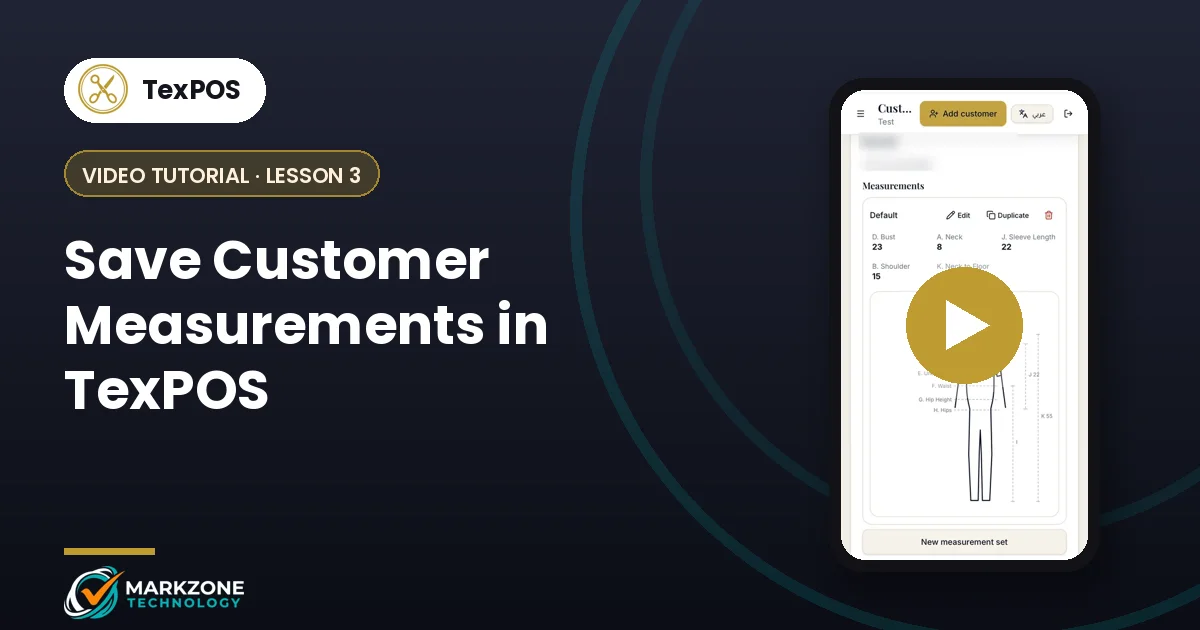
- Save their measurements. Enter the measurements on the body diagram and save them as a named set, for example “Kandura”. Next time, you simply pick the saved set.
- Add the items. Choose a custom-tailored item or a ready-made one, then pick the model and fabric.
- Choose the options. Add lining, buttons and other accessories. Each option adds its price to the invoice automatically and is deducted from stock.
- Set delivery and collection. Choose how the order will be handed over, set the collection date and add a delivery fee if there is one.
- Finish payment. Apply any discount, check VAT, choose the payment method and record the deposit. TexPOS shows the balance still due.
- Send the invoice and job order. The invoice comes out as a PDF with your shop logo and a sequential number, ready to print or send on WhatsApp. The job order goes to the tailor with every detail and measurement.
Following up in the orders screen
After the sale, the orders screen shows every order with its status. From there you can reopen the invoice, reprint the job order or record alterations, so nothing depends on memory or paper notes.
Tips from real shops
- Name measurement sets clearly. One customer can have separate sets for a kandura, an abaya or a wedding outfit.
- Always take a deposit in the app. Overdue balances are then easy to find in the customer’s file.
- Send the job order on WhatsApp. The tailor gets a clear, written order instead of a handwritten note.
Next lesson
Learn how to manage customer files and measurements, or go back to the full TexPOS tour. All lessons are on the video tutorials page.
Have a question about your own shop’s workflow? Message our UAE team on WhatsApp and we’ll walk you through it.